Disable Highlight

Friday, April 4, 2014

Visualization Best Practices guide


1. Avoid the use of quick filters on dashboards to improve load times. Use cross tabs, heat maps and highlight table filters....sometimes pie charts work for this purpose as well.

2. Keep dashboards to 4 panes and imagine a Z pattern of importance from upper left to lower right.

3. Don't build grids or pivot-table-looking dashboards. Use visual analytics and bring details in on demand via filter actions, jump filters, annotation or customized tool tips.
4. Pimp your tool tips at the end. If you don't, you will create more work for yourself.

5. Use color sparingly and never more than 2 ways in a single dashboard. Preferably one.

6. Avoid pie charts for one to many comparisons.

7. Use bullet graphs or bar charts.

8. Don't repeat the same chart type in dashboards - it’s boring.

9. Leverage data blending for ad hoc analysis to add meaning and WOW factor.

10. Strive for a high data to ink ratio - eliminate color, shape, size or text that doesn't add information or is redundant.

Here is the link

Wednesday, April 2, 2014

Tableau Mobility : How can we do it ?

In Tableau, you do not have to do anything special to make a dashboard mobile. Simply publish to Tableau Server like you always have, and Tableau will detect if you’re using the Mobile app. You even get the native touch experience if you go to Tableau Server from your mobile browser, without the app at all.

Ease of use is the single most important aspect of mobile business intelligence. When you’re on the go, you need to be able to get to the data you need with a few taps.

Filters: Tableau’s controls such as filters, parameters, sliders, scrolling, and zoom & pan, are specially built to interact with your fingers. For example, tapping a filter pops a large, touch-optimized quick filter. And for long filters, there is scrolling inside the filter.

Views: Views themselves are touch-optimized with dynamic scrolling. Simply swipe to scroll through a long customers list, for example. Or pinch & zoom in a map.

The two major approaches for Mobility in Tableau


Security

Mobile business intelligence must be secure. With the Tableau mobile solution, security and metadata continues to be managed by Tableau Server. This means you can enforce your existing security protocols and integrate with ActiveDirectory via Tableau Server.

And if an employee loses their iPad or Android tablet, simply disable their Tableau Server account and give them a new one. No data other than descriptive data about a workbook (like the publisher, data modified and name) are stored on the device, so you can keep your data secure even while it’s mobile.

Tuesday, April 1, 2014

Using Desktop excel file as Live data Source for Tableau Server


Thanks Jonathan Drummey for the steps

The order of setting up a live Tableau Server connection to a file data source such as Excel, Access, or text file via a workbook (in other words, *not* using Tableau Data Server) is:

0) If Microsoft Office is not installed on Tableau Server and you are connecting to Excel or Access files, you will need a driver from the list in Drivers & Activation | Tableau Software. Note that this requirement will go away in many cases for Excel files in Tableau 8.2 that can use the new Excel connection type in 8.2.

1) Set up your Tableau Server so that the user Tableau Server runs as has access to wherever you are putting the Excel, Access, or text files to use as data sources.

2) In Tableau Desktop always use the UNC path like \\localhost\pathname rather than C:\pathname. If you didn't do that at the beginning, you can always edit the connection later, which is better than replacing the data source because if you do the latter then you'll lose colors & aliases.

3) When publishing to server, make sure you *uncheck* "Include External Files". If you don't do this, you'll be scratching your head later when the data doesn't update. If you didn't do step 2 or step 1, when you publish as Tableau is rendering the viz in the preview window Tableau will spit errors at you saying it can't display the viz. Note that Tableau only does that for the data sources required for the viz, so if you have data sources A and B, and the preview viz uses A but B isn't available, the publishing will work fine and you won't get the error until someone on Tableau Server tries to access a worksheet or dashboard that uses data source B.

Monday, March 24, 2014

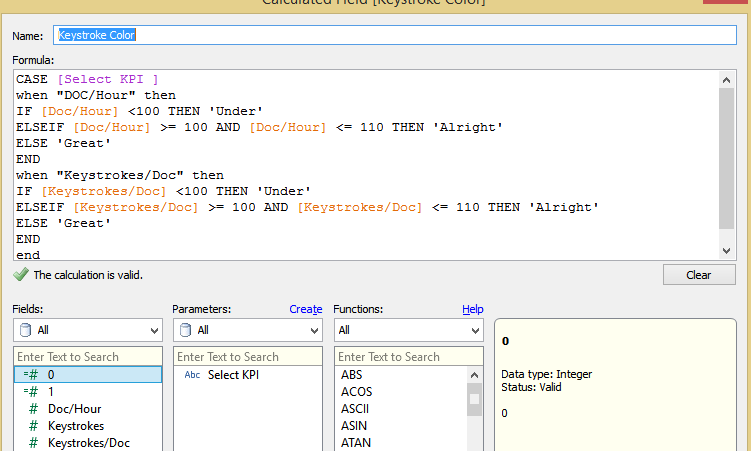
Tableau Use Case : Creating a dashboard for KPIs in a Text Table


Hello.

Today's  use case is that I have a Text Table that has the names of people on the rows and dates on the columns and should be filtered by what activity we're looking at (the documents per hour, number of keystrokes, etc). It should show a shape or color based on thresholds for a particular activity.

The part that I'm having a problem with is creating calculated fields that would accept whatever activity currently selected by the filter and having thresholds for them.


Solution :

Step 1: Create a Parameter as shown below and select show parameter control


Step 2: Create a Calculated Field KPI Values as shown below


Step 3: Create a Calculated measure Key stroke color as shown below


Now drag the KPI Values to the Label field. , Key Stroke to the Shapes and assign the shapes for KPI as desired.

KPI DOC/Hour


KPI Keystrokes/DOC
keystrokesdoc.PNG.png


The workbook pic


I am attaching the workbook with the solution here , Let me know if you face any problem viewing it.
You may need to change the thresholds based on your requirement , I just picked a random value.

Friday, March 21, 2014

Tableau Use Case : Using a Parameter to control another Parameter


Hi All-

I was wondering if anyone knew how to use a Parameter to control other parameters to filter through data.

For example, I would like to have a primary parameter that would have options in a single values list such as:

1. Top N
2. Bottom N
3. All

If the user selected "All" then all the data would show in the window.

If the user were to select "Top N" I would want them to be able to control the Top "N" (Top 1, 4, 5, 10, etc.) they would like to see on a separate parameter slider control.

If the user selected "Bottom N" then I would want them to be able to control Bottom "N" (Bottom 1, 4, 5, 10, etc.) on a separate parameter slider control.

Here is the Solution with the Workbook attached here.


Wednesday, March 19, 2014

Tableau Tip : How to Calculate Time Difference

Today I was in a situation to calculate time difference between two time fields in Tableau. But Tableau doesn't offers us with any Time Functions . I was able to solve the use case by writing a lengthy Calculated field .

Here is the Logic I Implemented , I Calculated the time difference between both the time stamps in seconds. Later I converted the seconds in to hh:mm:ss format.

The Calculation Logic I used to Calculated time in seconds is

( DATEPART('hour',DATEtime([End time ]))* 3600+ 
DATEPART('minute',DATEtime([End time ]))*60 + 
DATEPART('second',DATEtime([End time ])) ) - ( DATEPART('hour',DATEtime([Start time]))* 3600+ 
DATEPART('minute',DATEtime([Start time]))*60 + 
DATEPART('second',DATEtime([Start time])))


The Calculation Logic I used to Calculated time in seconds

(str(([total time in seconds]- (([total time in seconds]-([total time in seconds]%60))%3600)-([total time in seconds]%60))/3600)+ ":" + str((([total time in seconds]-([total time in seconds]%60))%3600)/60)) + ":" + str([total time in seconds]%60)


The workbook can be downloaded from here


Sunday, March 16, 2014

Tableau Tip : Exporting CSV made Simple

I would like to Thanks Andy Kriebel for the wonderful tip.

We’ve all heard this question before: How can I export a CSV in Tableau? To be honest, it’s quite the pain and way more difficult than it should be. There have always been a few options.
Users can click on a specific sheet on a dashboard and then export that via the tiny button on the toolbar, but that has a few of its own problems:
(1) You may not want to show the toolbar therefore making the export impossible, 
(2) People have to be trained to know exactly where to click to get it just right, and 
(3) You have no control over the output of the CSV. You can export a CSV using Tabcmd, but that’s not useful for the average dashboard consumer. You can add .csv to the end of the URL like http://[Tableau Server Location]/views/[Workbook Name]/[View Name].csv. 
But again, you never know what that output is going to look like. 

Lets look at the article here.